
Beyond Traffic: How to Audit Your WordPress Site for Maximum Conversion in 2026

Beyond Traffic: How to Audit Your WordPress Site for Maximum Conversion in 2026

SEO, WordPress

 Beyond Traffic: How to Audit Your WordPress Site for Maximum Conversion in 2026

In the early days of SEO, traffic was the only metric that mattered. If you had 10,000 visitors a month, you were winning. But as we head into 2026, the landscape has shifted. With AI-driven search (SGE) and zero-click results becoming the norm, the traffic reaching your site is more intentional than ever.If that traffic isn’t converting, you aren’t just losing sales—you’re wasting a high-intent audience.

It’s time to look beyond the “hits” and “sessions.” Here is your comprehensive guide to performing a WordPress conversion audit that turns your website into a high-performance sales machine.

1. The 2026 Speed Standard: Interaction to Next Paint (INP)

We already know speed is a ranking factor, but in 2026, conversion is tied to responsiveness. Users no longer tolerate “laggy” interfaces.

  • The Audit Task: Check your INP (Interaction to Next Paint) scores in Google Search Console.

  • The Fix: If your buttons don’t react instantly when clicked, you’re losing users. Minimize heavy JavaScript execution and consider moving to a lightweight framework or a headless WordPress setup using React to ensure your UI feels “app-like.”

2. Eliminate “Decision Fatigue” with Clean UX

Modern users are overwhelmed. If your WordPress site has too many sidebars, pop-ups, and competing Calls to Action (CTAs), users will bounce.

  • The Audit Task: Use a heatmapping tool (like Hotjar or Microsoft Clarity) to see where users get stuck. Are they clicking on non-clickable elements? Are they scrolling past your main CTA?

  • The Fix: Simplify your navigation. Ensure every page has one primary goal. If it’s a blog post, it’s a newsletter signup; if it’s a service page, it’s a contact form.

3. Trust Signals 2.0: Beyond the SSL Badge

In 2026, an SSL certificate is the bare minimum. To convert, you need Hyper-Local Social Proof and E-E-A-T (Experience, Expertise, Authoritativeness, and Trustworthiness).

  • The Audit Task: Look at your landing pages. Are your testimonials generic? Do you have “As Seen On” logos that actually link to the sources?

  • The Fix: Embed video testimonials and real-time social proof (like recent sales notifications). Ensure your “About” page highlights your actual hands-on experience in WordPress development and SEO.

4. Mobile-First is Now Mobile-Only

The majority of conversions now happen on mobile devices, often via social media browsers (like the Instagram/LinkedIn in-app browsers).

  • The Audit Task: Open your site inside the LinkedIn or Instagram app. Does the “Sticky Header” take up half the screen? Is the “Buy Now” button too small for a thumb to click?

  • The Fix: Implement Thumb-Zone Design. Place your most important buttons within easy reach of a user’s thumb and ensure your forms use “Auto-fill” tags to make mobile entry seamless.

5. Audit Your Technical Sales Funnel

Sometimes, the reason you aren’t converting is a simple technical glitch that you haven’t noticed because you’re logged in as an Admin.

  • The Audit Task: Perform a “Mystery Shopper” test. Open an Incognito window and try to complete your own contact form or checkout process.

  • The Fix: * Check for broken 404 pages in your funnel.

    • Ensure your “Thank You” page actually loads.

    • Verify that your email automation (Mailchimp/FluentCRM) is actually delivering the lead magnet.

Final Thoughts

Getting traffic is the job of SEO; keeping it is the job of UX; but converting it is the job of Strategy.

As a WordPress developer in India , I’ve seen countless sites with beautiful designs that fail to pay the bills. By performing this audit, you stop leaving money on the table.

Need a professional eye to audit your WordPress performance? Contact me today for a deep-dive technical and conversion audit.
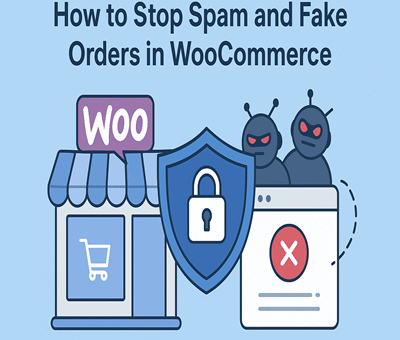
How to Stop Spam and Fake Orders in WooCommerce: A Complete Guide

How to Stop Spam and Fake Orders in WooCommerce: A Complete Guide

PHP, WordPress

Running a WooCommerce store is awesome — until spam orders, fake signups, and bots start flooding your dashboard
These fake orders waste time, mess up reports, and sometimes even cause payment gateway issues.

Let’s fix that. Here’s your complete guide to stop spam and fake orders in WooCommerce — once and for all.


🧩 1. Enable CAPTCHA on Checkout and Registration

Bots love open forms. The easiest way to stop them is by adding a Google reCAPTCHA or hCaptcha on checkout and registration pages.

Plugins you can use:

  • reCaptcha for WooCommerce

  • Advanced noCaptcha & Invisible Captcha

👉 Pro tip: Go for the invisible reCAPTCHA so your real customers don’t get annoyed.


🧾 2. Use Email and Phone Verification

Require your customers to verify their email or mobile number before placing an order.
This single step eliminates 90% of fake orders made with random emails.

Plugins to try:

  • Phone Verification for WooCommerce

  • Email Verification for WooCommerce Registration


🕵️ 3. Add Anti-Spam Plugins

If you’re seeing too many junk signups or reviews, install an anti-spam plugin.

Top picks:

  • Akismet Anti-Spam (built by WordPress themselves)

  • CleanTalk Spam Protection

  • WP Armour – Honeypot Anti Spam

These tools detect and silently block spam bots before they can hit your checkout.


⚙️ 4. Limit Orders per IP or Email

Some spammers use scripts to flood your site with repeated orders.
Set limits like:

  • Max 2–3 orders per IP in 24 hours

  • Prevent duplicate email addresses

You can achieve this using:

  • WooCommerce Anti-Fraud plugin

  • FraudLabs Pro for WooCommerce


🧠 5. Use WooCommerce Anti-Fraud Tools

WooCommerce has specialized plugins that analyze customer behavior and score each order for risk.
If an order looks shady (like mismatched country and billing), it’ll automatically be flagged or held for review.

Recommended:

  • WooCommerce Anti-Fraud by WooCommerce

  • Fraud Prevention Plugin by MaxMind


🛑 6. Block Disposable or Temporary Emails

Fake customers often use emails like @mailinator.com or @tempmail.net.
You can block these domains easily with:

  • Ban Hammer

  • Email Address Checker for WooCommerce


🔒 7. Use Firewall and Security Plugins

Don’t let spam traffic even reach your checkout.
Install a web firewall that blocks suspicious IPs and bots in real-time.

Best options:

  • Wordfence Security

  • Sucuri Security

  • Cloudflare WAF (free tier works too!)


💰 8. Review Payment Gateway Settings

Set your payment gateways to auto-cancel unpaid orders after a few minutes.
Fake customers often don’t pay — this cleanup helps keep your order list clean.

Example:
Go to WooCommerce → Settings → Products → Inventory → Hold Stock (minutes) and set a short timeout like 15–30 minutes.


9. Manual Approval for High-Risk Orders

For stores getting repeated fraud attempts, consider enabling manual approval for suspicious or high-value orders.
You’ll get more control and fewer charge-backs.


🧹 10. Keep Your WordPress & Plugins Updated

Outdated plugins = easy target.
Always keep your WooCommerce, themes, and plugins up-to-date.
Run regular security scans and take daily backups (use UpdraftPlus or BlogVault).


Conclusion

Spam and fake orders are annoying, but they’re not unstoppable.
By combining verification tools, security plugins, and smart rules — you can make your WooCommerce store rock-solid and stress-free.

Hire WordPress Developer India